.svg)
Create Bulk Banking in Taxlink
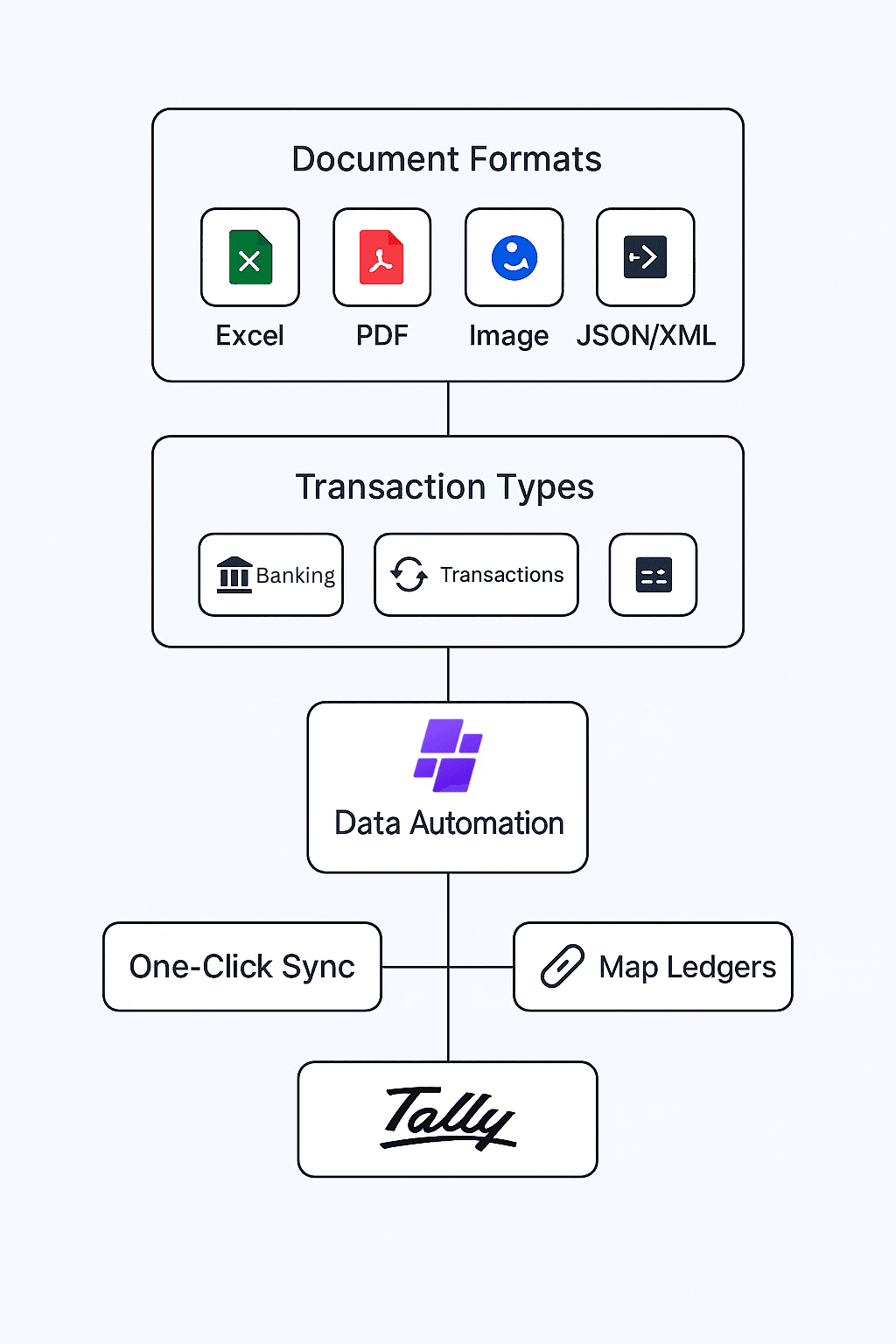
Learn how to efficiently upload multiple banking transactions to Taxlink using the bulk upload functionality. Supports Excel, PDF, and CSV file formats for seamless data integration.
Supported File Formats
Excel
.xlsx, .xls
Spreadsheet files with structured banking data
Bank statements in PDF format
CSV
.csv
Comma-separated values for transaction data
Prerequisites
- Active Taxlink subscription with bulk upload permissions
- Banking data files in supported formats (Excel, PDF, CSV)
- Proper bank account setup in Taxlink system
- Valid transaction data with dates, amounts, and descriptions
- Stable internet connection for file uploads
Step-by-Step Bulk Banking Guide
Open Bulk Upload Module
Navigate to the Bulk Master Creation section and access the bulk upload functionality to begin the banking data import process.
Step 1: Open Bulk Upload Module
Key Actions:
- Log into your Taxlink dashboard
- Navigate to the "Bulk Master Creation" section in the main menu
- Locate the bulk upload module from the available options
- Wait for the bulk upload interface to load completely
- Ensure you have proper permissions to perform bulk operations
Select Banking Option
Choose the Banking option from the bulk upload menu to specify that you want to create bulk banking entries.
Step 2: Select Banking Option
Key Actions:
- Look for the "Banking" option in the bulk upload menu
- Click on "Banking" to select it as your bulk upload type
- The system will prepare the banking-specific upload interface
- Verify that "Banking" is highlighted or selected
- Wait for the banking upload form to appear
Click on Upload Button
Locate and click the upload button to initiate the file selection process for your banking data.
Step 3: Click on Upload Button
Key Actions:
- Find the "Upload" or "Choose File" button on the interface
- Click on the upload button to open the file browser
- The file selection dialog will appear
- Prepare to navigate to your banking data files
- Ensure your files are ready in the correct location
Select Bank and Upload File
Choose your specific bank from the dropdown and upload your banking data file in the supported formats (Excel, PDF, or CSV).
Step 4: Select Bank and Upload File
Key Actions:
- Select your bank from the dropdown list of supported banks
- Choose your prepared banking data file from your computer
- Supported file formats: Excel (.xlsx, .xls), PDF (.pdf), CSV (.csv)
- Verify the file name and format before uploading
- Ensure the file contains proper banking transaction data
- Click "Upload" or "Submit" to start the file processing
File Processing and Validation
The system will process your uploaded file and validate the banking data for accuracy and completeness.

Step 5: File Processing and Validation
Key Actions:
- Wait for the file upload to complete
- System will automatically validate the file format
- Banking data will be parsed and checked for errors
- Review any validation messages or warnings
- Confirm that all required fields are present
- Address any data quality issues if prompted
Review and Confirm Upload
Review the processed banking data, verify accuracy, and confirm the bulk upload to complete the process.
Step 6: Review and Confirm Upload
Key Actions:
- Review the summary of uploaded banking transactions
- Check transaction dates, amounts, and descriptions
- Verify bank account details and transaction types
- Confirm the number of transactions processed
- Click "Confirm" or "Save" to finalize the bulk upload
- Wait for the success confirmation message
- Banking data is now available in your Taxlink system
Pro Tips for Success
Ensure your banking data files are properly formatted and contain all required transaction information
Check file size limits before uploading - large files may take longer to process
Review uploaded data carefully before confirming to avoid processing errors
Keep your banking data files organized by date ranges for easier management
Related Articles
Need Additional Help?
Our support team is ready to assist you with bulk banking setup and file upload issues.